
1. Database Management
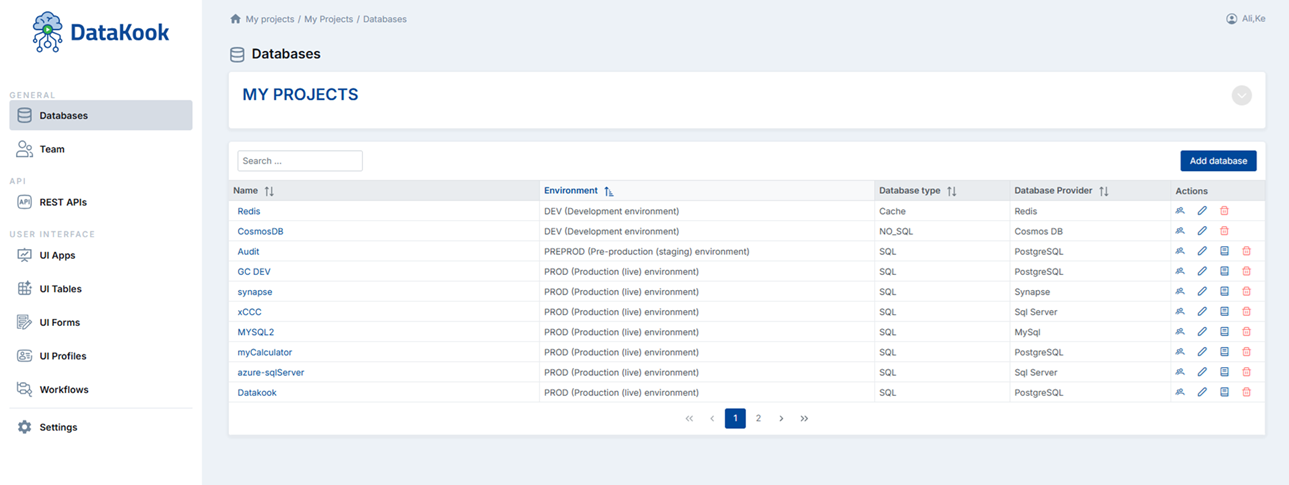
The Main Dashboard is your central hub for managing all databases connected to DataKook. From a single, unified view you can monitor, add, modify, and remove database connections, as well as navigate into each database's dedicated dashboard.
The database list displays the name, type (SQL Server, PostgreSQL, MySQL, MongoDB, etc.), and connection status of every registered data source. Color-coded indicators help you spot connectivity issues at a glance, so your team can react quickly to any disruption.
From the main database dashboard you can perform the following key operations:
- Add a new database connection using the guided connection wizard.
- Edit an existing connection's credentials, host, or port settings.
- Delete a database connection when it is no longer needed.
- Configure Audit settings to track all data and schema changes.
- Navigate to the Database Dashboard for detailed exploration of schemas, tables, views, and queries.
Add a Database
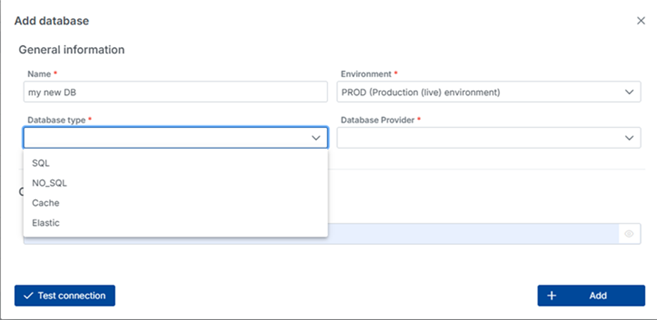
DataKook supports a wide range of database engines out of the box. Adding a new connection is a straightforward process handled through the guided connection wizard, accessible from the Main Dashboard by clicking the + Add Database button.
The wizard walks you through the required parameters for your chosen database engine:
General information
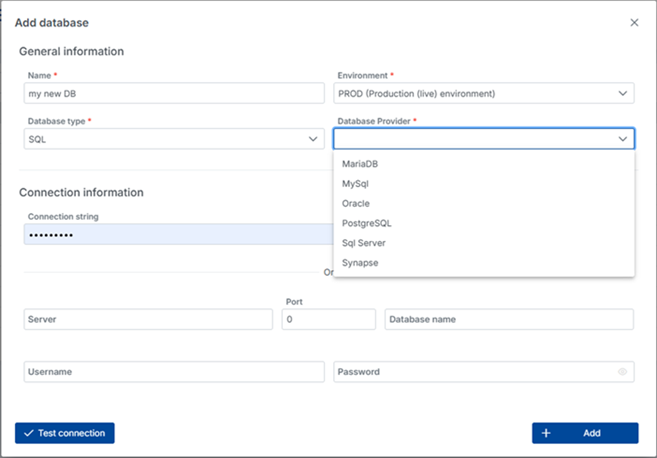
- Database type: SQL Server, PostgreSQL, MySQL, MariaDB, Oracle, MongoDB, and more.
- Additional metadata: The name, environment, and any descriptive tags.
Connection information
- Connection string: Enter either a full DB connection string, or fill in individual fields below.
- Database name: The name of the specific database or catalog you wish to connect to.
- Host / Port: The server address and network port for your database instance.
- Authentication: Username and password, or connection-string based authentication depending on the engine.
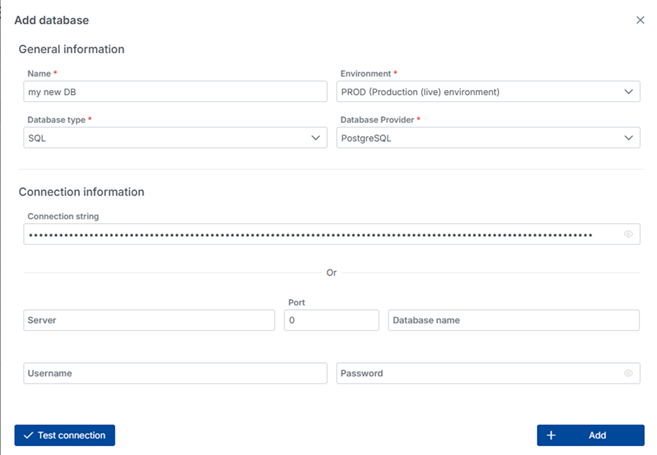
Once created, DataKook validates the connection in real time. A green status indicator confirms a successful connection, while any errors are displayed inline with diagnostic information to help you troubleshoot firewall rules, credentials, or network routing issues.
Audit DB
DataKook provides a built-in auditing feature that records every change made to your database through the platform. Enabling audit on a database gives you a full traceability trail covering who made a change, what was changed, and when it happened.
Audit configuration is accessible from the database list view by clicking the Config Audit option next to any database entry. This option is only available for SQL databases (such as SQL Server, PostgreSQL, MySQL). NoSQL databases have a separate change-tracking mechanism.
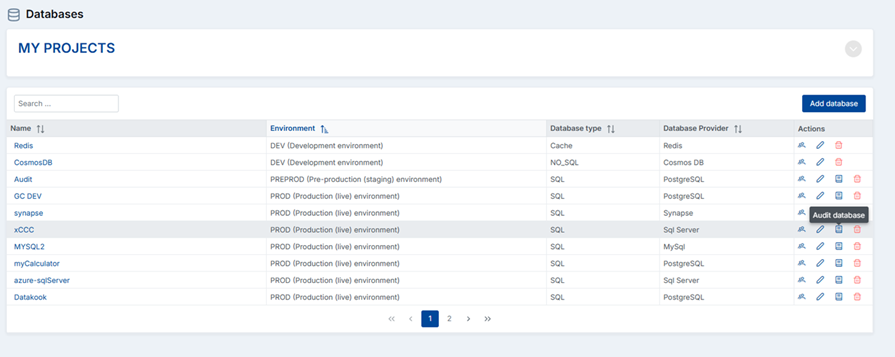
Once configured, audit logs are stored in a dedicated audit table within DataKook's internal schema, giving administrators a centralized location to review change history, generate compliance reports, and investigate anomalies.
Data Audit
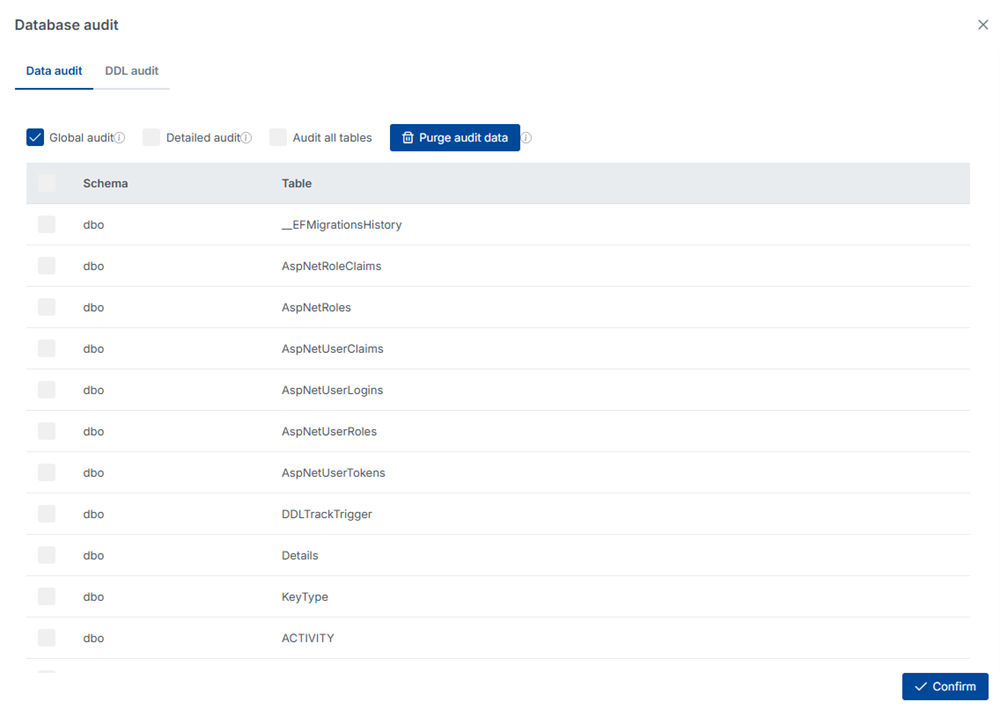
Data auditing captures all data manipulation operations — INSERT, UPDATE, and DELETE — performed on your database tables. You can audit all tables at once with a single toggle, or selectively enable auditing on specific tables when you only need to track sensitive or business-critical data.
There are two levels of data audit depth:
- Global Audit: Captures all data operations performed through DataKook only. Ideal for tracking activity generated by the platform itself such as API calls, form submissions, and bulk operations.
- Detailed Audit: Captures all data operations performed through DataKook and all other connected applications or direct database clients. More comprehensive and useful in environments where the database is accessed by multiple systems simultaneously.
Each audit record includes the table name, operation type, changed values (before and after), the DataKook user who performed the action, and the exact timestamp.
DDL Audit
DDL (Data Definition Language) auditing tracks structural changes to your database schema: table creation, column additions, index modifications, constraint changes, and other schema-altering operations.
When DDL Audit is enabled, any schema-level operation — whether executed through DataKook or directly in the database client — is captured and logged. This is especially valuable for compliance-heavy environments where unauthorized schema changes can pose significant risk.
2. User Management
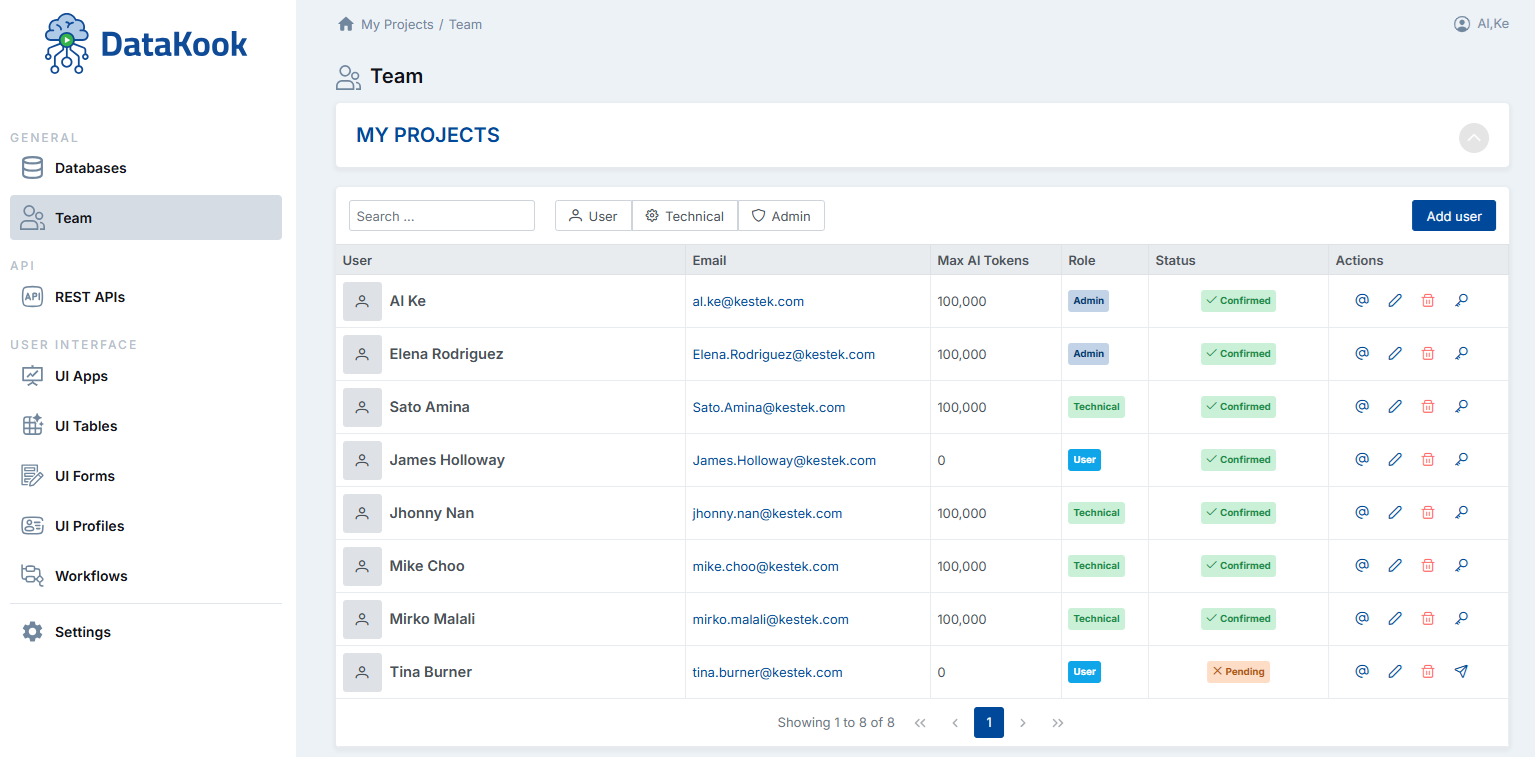
The User Management dashboard provides complete control over who can access DataKook and what they are permitted to do. From a single screen, administrators can view, create, modify, and deactivate user accounts across the entire platform.
The user list displays each account's name, email address, assigned role, and current status. From here you can perform the following operations:
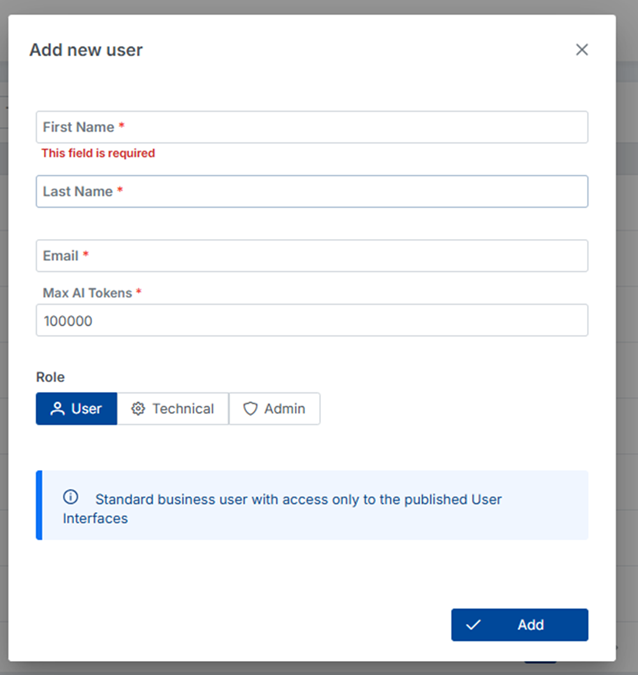
- Add a new user with a name, email, and role assignment.
- Edit a user's profile information or update their email address.
- Delete a user account that is no longer active.
- Reset Password: Available when the platform is configured to use the built-in Login and Password authentication method. Administrators can trigger a password reset directly from the user management screen.
User Roles
DataKook enforces a three-tier role model that controls access at every level of the platform. Assigning the correct role ensures that each team member sees only the features and data relevant to their responsibilities.
The User role is designed for standard business users — analysts, managers, and other non-technical stakeholders who need to read and interact with data through intuitive interfaces. Users with this role can only access the published User Interface (UI) applications that have explicitly been shared with them. They cannot view database structures, build APIs, or change platform settings. This makes the User role ideal for secure, self-service data consumption with no risk of unintended configuration changes.
The Technical role is tailored for developers, data engineers, API integrators, and database architects. Technical users have access to the full data exploration layer — they can browse database schemas, run queries, configure REST APIs, and design User Interface templates. However, they cannot manage platform-level configurations such as user accounts, global security settings, or system-wide audit policies. This separation keeps the platform secure while giving technical teams maximum flexibility for development work.
The Admin role grants unrestricted access to every feature of the DataKook platform. Administrators manage user accounts, configure database connections, design API security policies, publish interfaces, and tune global system settings. Admin accounts should be tightly controlled and assigned only to individuals responsible for platform governance and security.